Attributes
Understand attribute templates and attributes.
Attributes let you describe your catalog with structured, reusable values such as Color, Size, Material, or Season. Instead of typing free text on every product, you define a value once and attach it wherever it’s needed. This keeps your data consistent and makes attributes usable for filtering, translations, and storefront display.
The core idea
There are two building blocks. Understanding the difference between them is the key to using attributes well.
Attribute template
A reusable group of related options, plus the rules for how those options are described. Think Color, Size, or Material.
Attribute
A single option inside a template. Think Red, XL, or Cotton. This is what you actually attach to a product.
A simple way to remember it:
The template is the question (“What color is it?”). The attribute is the answer (“Red”).
Example
Template:  Color
├─ Attribute:  Sand Beige
├─ Attribute:  Forest Green
└─ Attribute:  Black

Template:  Size
├─ Attribute:  S
├─ Attribute:  M
└─ Attribute:  L
A product such as a Wool Sweater might then carry the attributes Color / Forest Green and Size / M.
Anatomy of a template
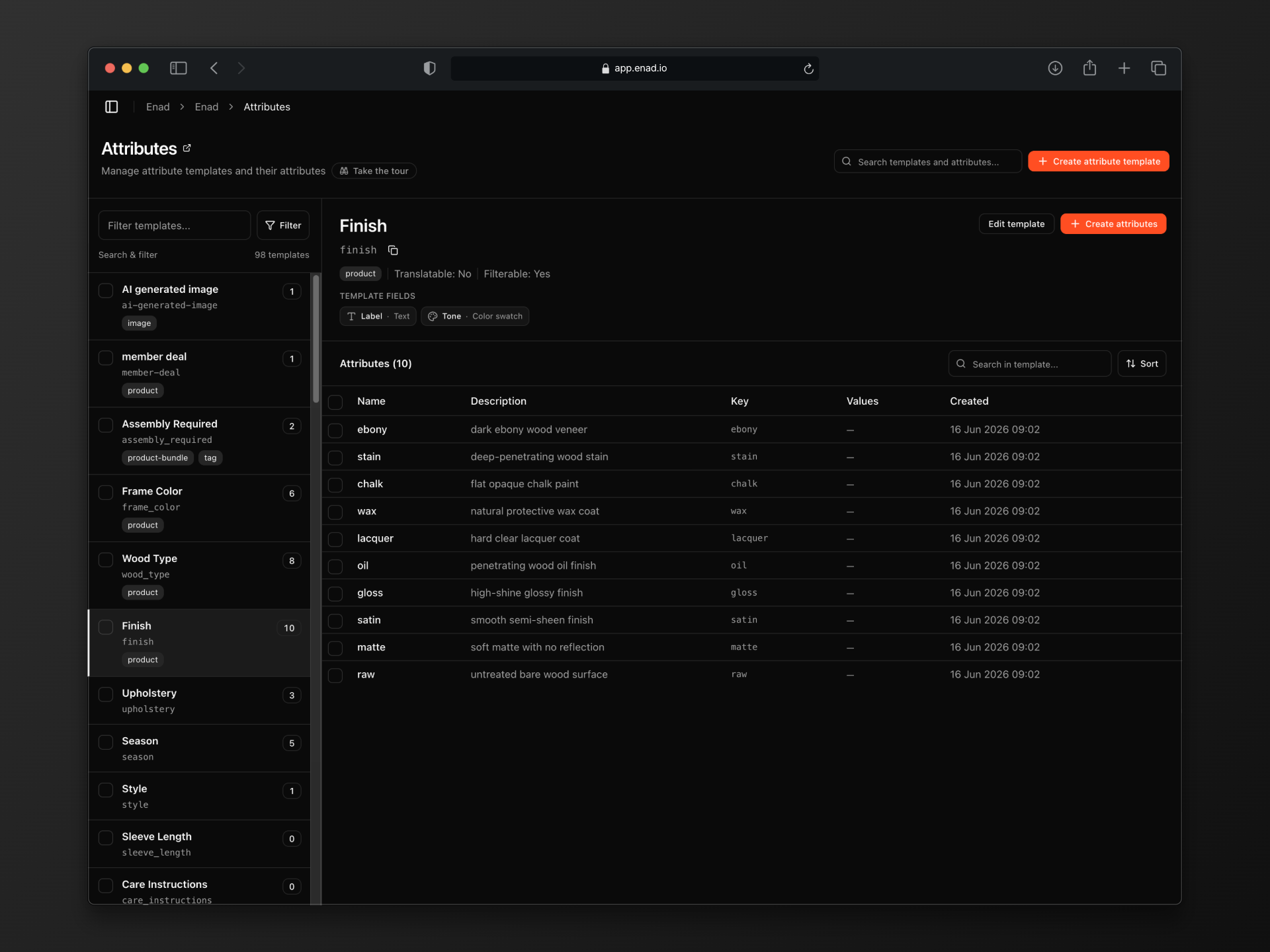
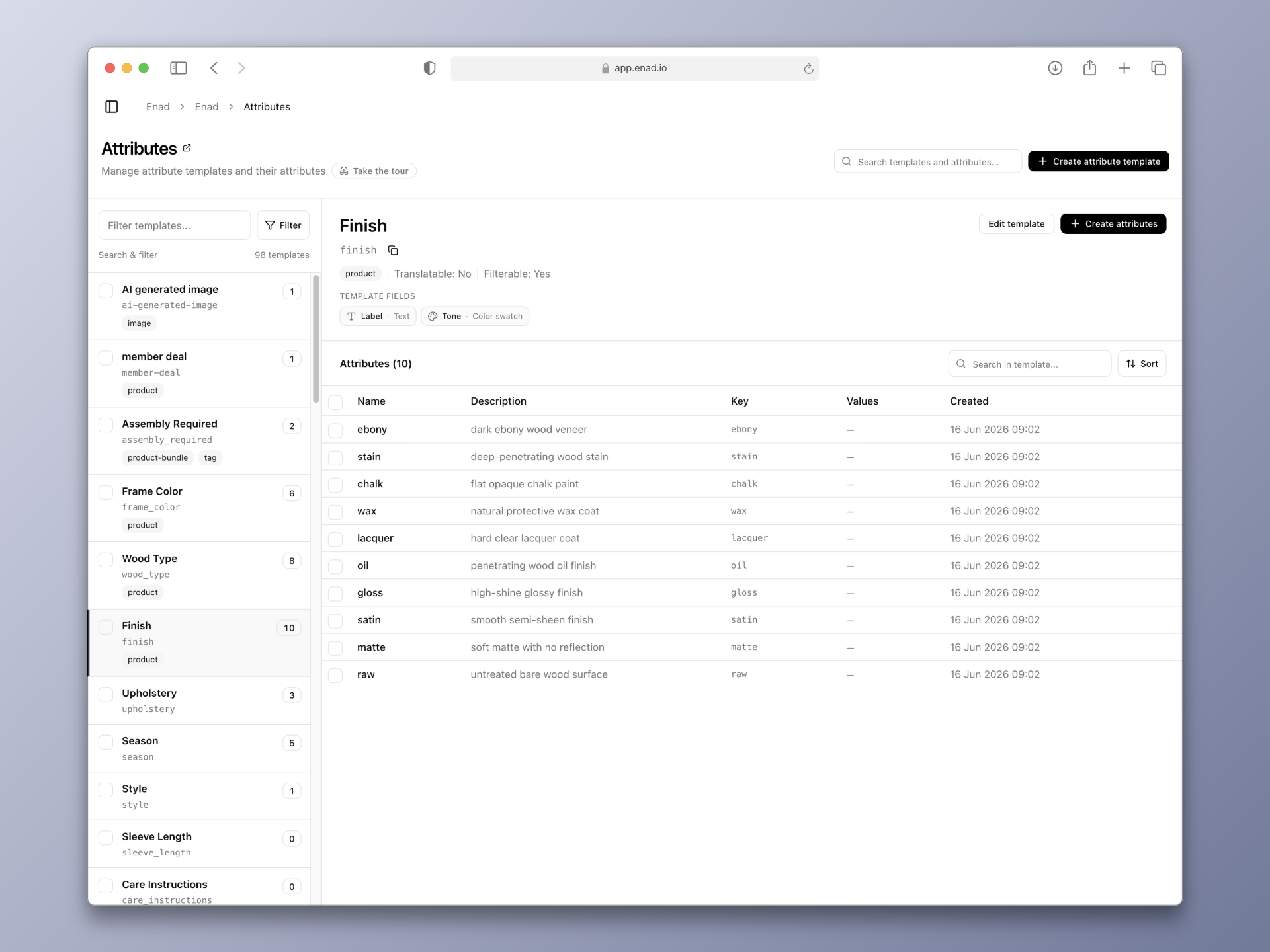
When you create a template, you configure a few settings that apply to every attribute inside it.
| Setting | What it does |
|---|---|
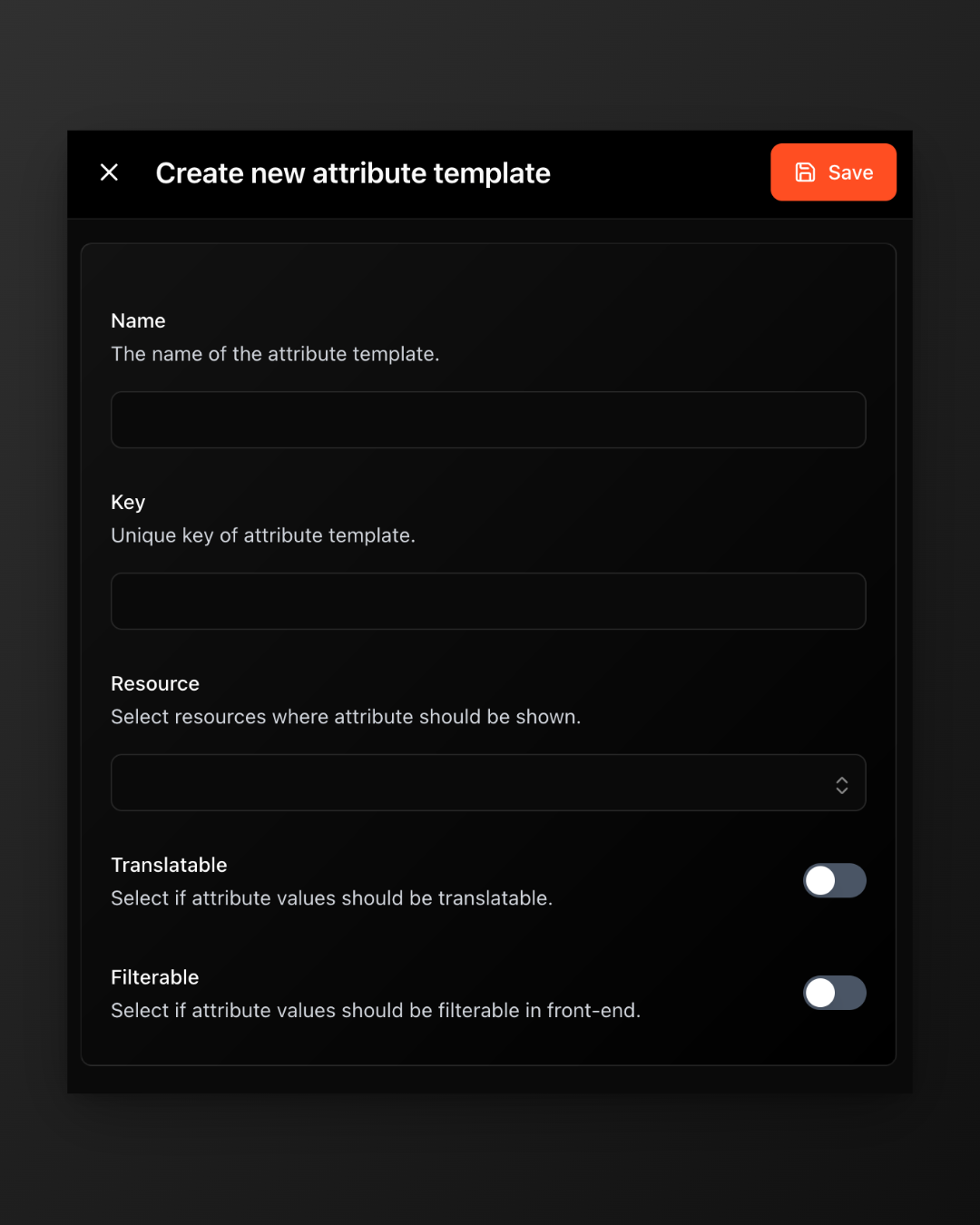
| Name | The human-readable label, e.g. Color. |
| Key | A unique, machine-friendly identifier, auto-generated from the name (e.g. color). Used by the API and integrations. |
| Resources | Which entity types can use this template. Pick one or more from the supported resources list. |
| Filterable | Makes the attribute values available as filters on the storefront. |
| Translatable | Allows each attribute’s values to be translated into your other languages. |
| Fields | Extra pieces of data captured for each option (see Fields). |
Fields: extra data on each option
By default, every attribute already has a name, key, and description. Fields let you attach additional structured data to each option in a template.
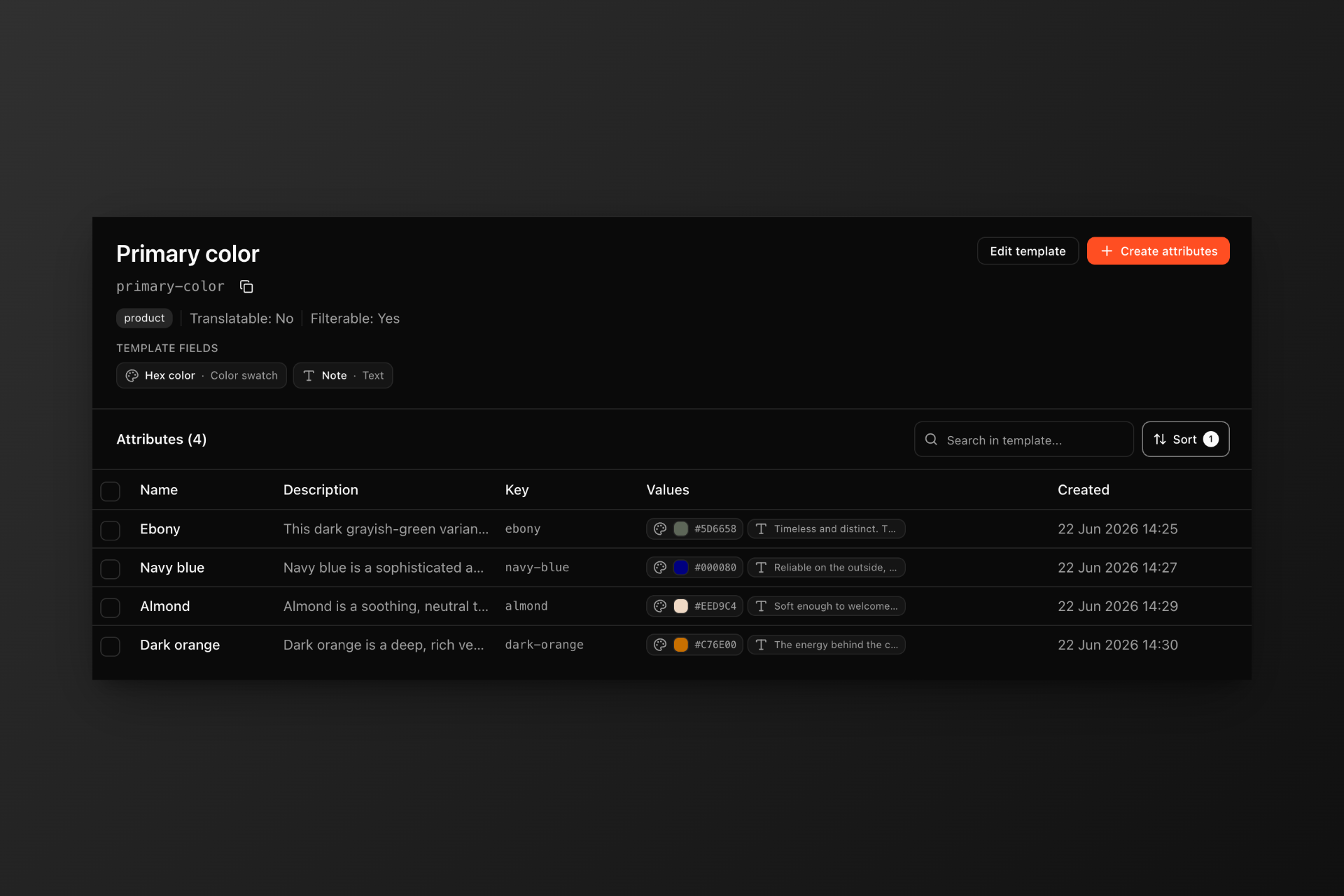
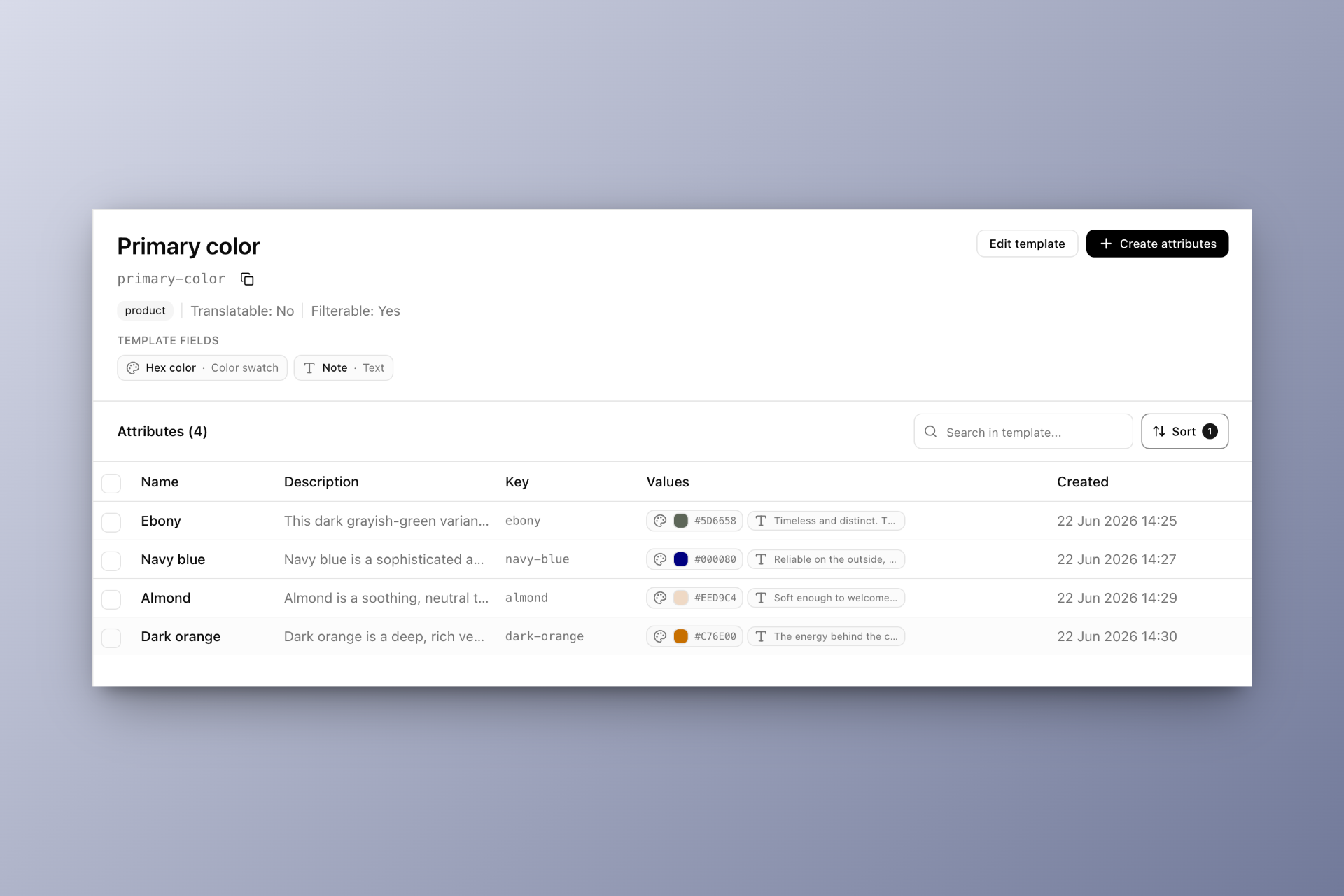
The classic example is the Color template: the option is named Forest Green, but you also want to store the exact hex color (shown as a swatch) and perhaps a real image of the material. You’d add a color field and an image field to the template, and then fill them in for each option.
Available field types:
| Field type | Use it for |
|---|---|
| Text | Short free-text values, codes, or labels. |
| Number | Numeric values such as weight, capacity, or thread count. |
| Boolean | Yes/no flags such as “Waterproof”. |
| Color | A color value (hex), rendered as a swatch. |
| Image | An actual image picked from your app’s assets. |
Supported resources
When you create or edit a template, the Resources field is where you choose which entity types can use its attributes. In the dashboard this appears as a multi-select on the template form; each option is one of the resource types below.
Attributes aren’t limited to products. The same template model works across every supported resource:
- Product
- Product variant
- Tag
- Asset (image, video, and file)
- Category
- Organisation
- Merchant user
- Product bundle
A template is defined once at the application level and made available only on the resources you select. For example, a Color template might apply to products and variants, while a Department template applies only to merchant users.
Linked attributes
You can link an attribute to another attribute in a different template. Attaching one then brings the other along: reading a product or variant includes the attributes attached directly and the attributes linked to those. Unlinking stops that. It leaves the attributes themselves in their templates, and it does not remove an attribute you attached directly.
Two common uses:
- Map a specific value to a broader one shoppers should filter on. Link
Color / NavytoBase color / Blue, orMaterial / Merino WooltoMaterial / Wool. A storefront can then filter onBlueorWoolwithout listing every shade or fabric. - Carry a related value along. Link
Color / Forest GreentoTheme / Earth Tones, and products with that color also get the theme.
Filtering does not require the base attribute on the product. The product search index includes attributes linked to the ones that are attached. A product with Navy attached, and Navy linked to Blue, matches an attributeKeys filter on Blue. Blue also shows up in attribute facets, with that product counted.
Product → attribute: Color / Navy   (attached)
Navy → Blue                          (Navy is the specific value, Blue is the base value)

Filter on base color Blue matches the product
Which value goes where
Each link names two attributes:
attribute_idis the product-specific value, the one attached to the product. Example: colorNavy.linked_attribute_idis the value you are linking to, the one you want to filter on. Example: base colorBlue.
If product search should filter on base color Blue, then Navy is the attribute_id and Blue is the linked_attribute_id.
{
  "links": [
    {
      "attribute_id": "c0a80101-0000-0000-0000-000000000001",
      "linked_attribute_id": "c0a80101-0000-0000-0000-000000000002"
    }
  ]
}
Links are sent with PUT and removed with DELETE on /attribute-templates/{template_id}/links, up to 20 links per request.
Typical workflow
Create a template
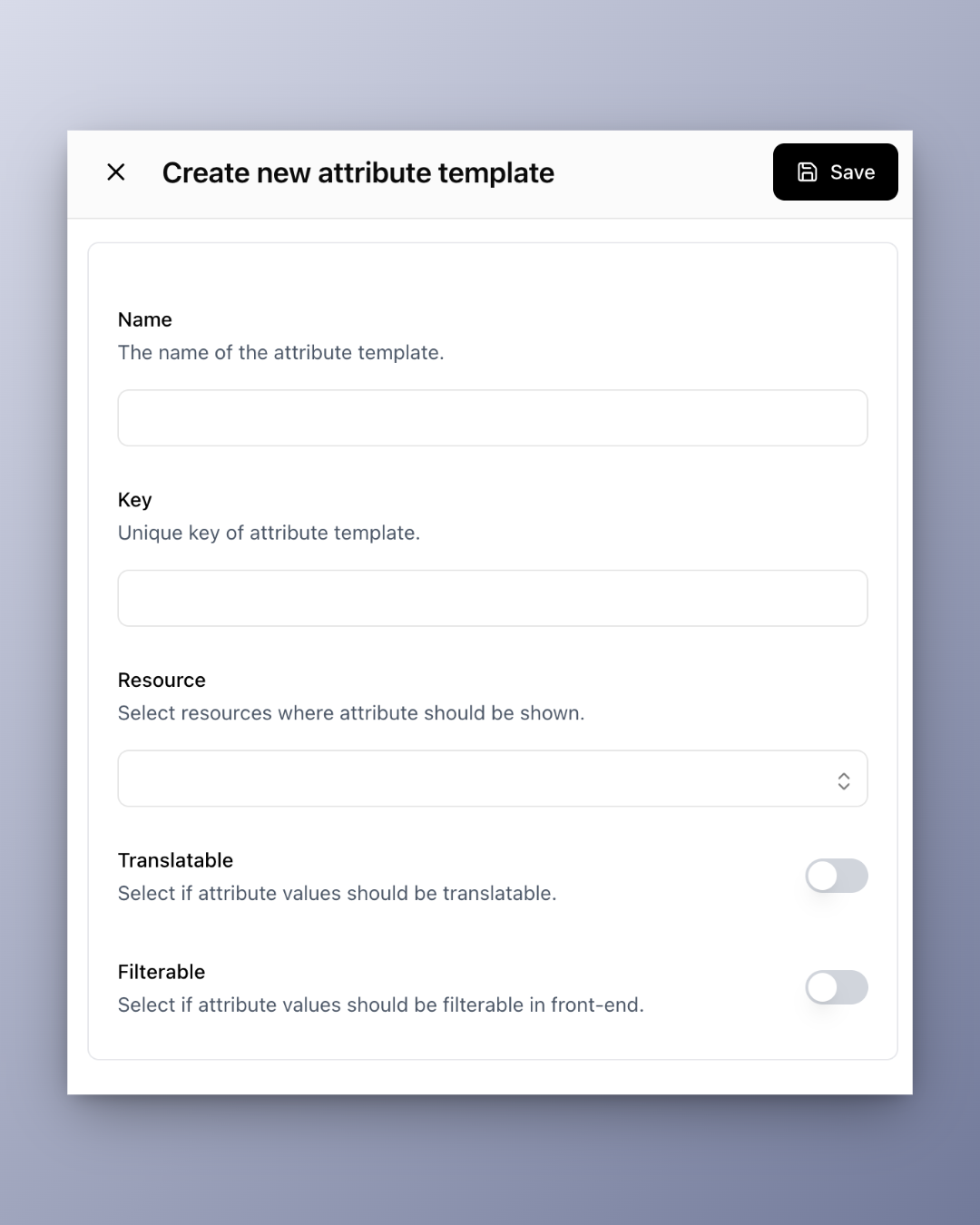
Go to Products → Attributes and create a new attribute template. Give it a name (e.g. Color), choose which resources it applies to, and decide whether it should be filterable and/or translatable.
Add fields (optional)
If each option needs extra data, like a hex color or an image from your assets, add the relevant fields to the template.
Add the options
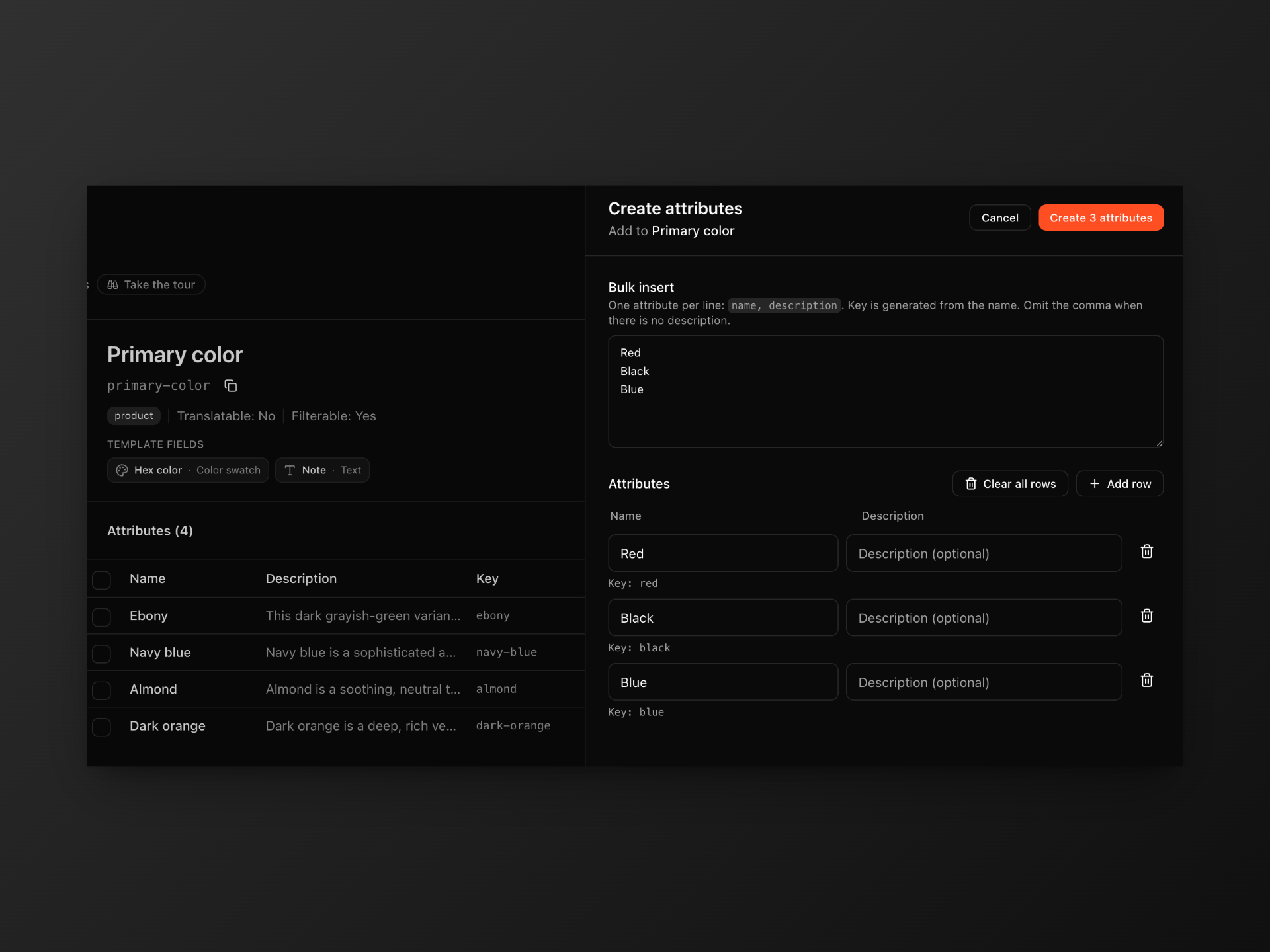
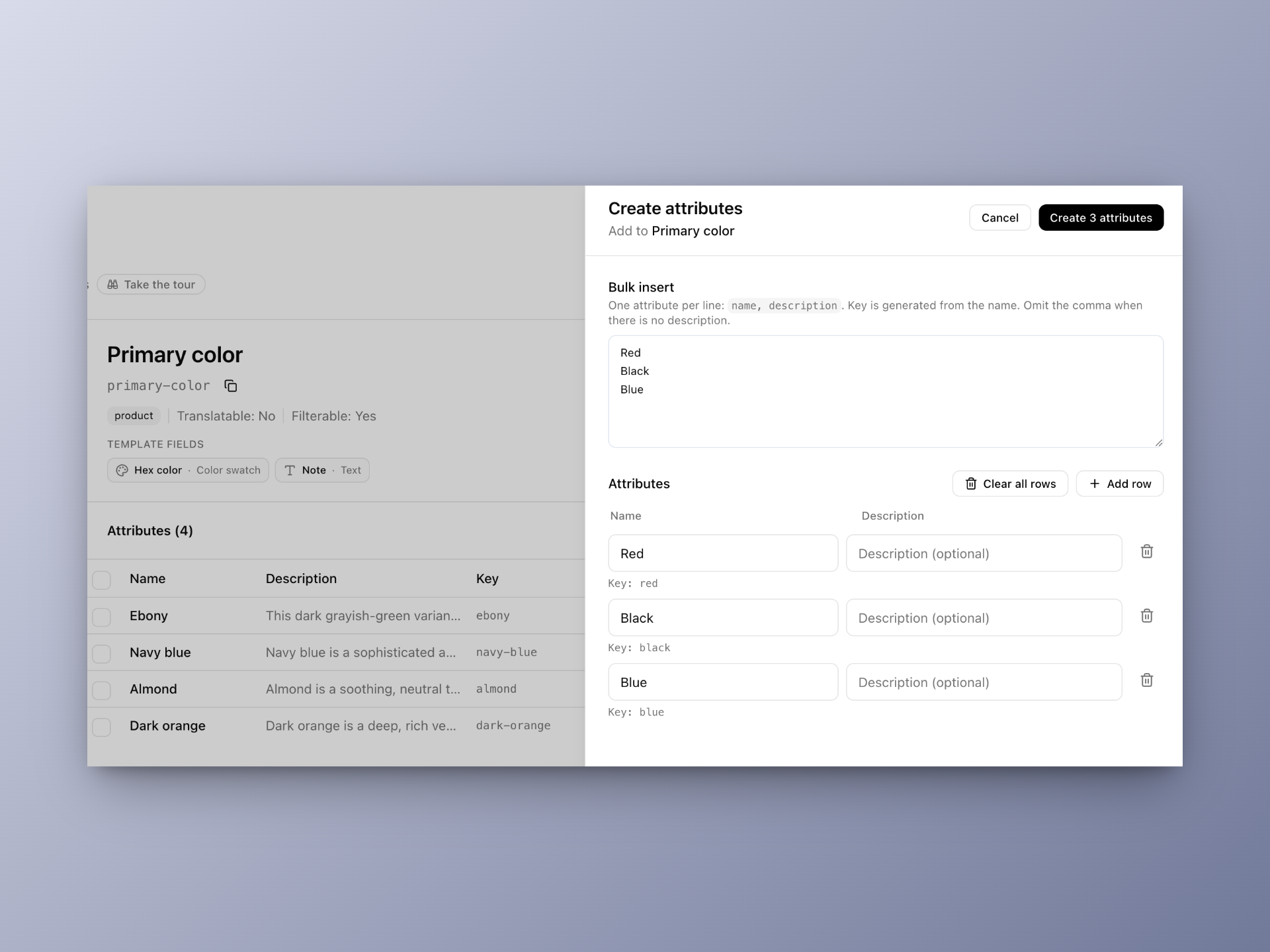
Inside the template, create the individual attributes (the options), e.g. Red, Blue, Black. Bulk creation of attributes is available.
Attach it where you need it
Open any supported resource the template applies to (for example a product, variant, category, tag, or asset), find the template, and select one or more of its options to attach.
Attaching and detaching is flexible
Attaching an attribute to an entity simply creates a link between them; it doesn’t move or copy the underlying data. This has a few useful consequences:
- Attach freely, in any combination. The same attribute (e.g.
Color / Forest Green) can be linked to as many entities as you like, across every resource type the template supports. Each entity can carry as many attributes as it needs. - Detaching never deletes data. Removing an attribute from an entity only breaks that one link. The attribute, its fields, and its values stay safe in the template and remain attached to every other entity that uses it.
- Edit once, update everywhere. Because entities point at the same attribute, editing the attribute (for example fixing a hex value or a translation) updates it for every entity it’s linked to.
- The template is the source of truth. Your attributes and their data always live in the template. Entities just reference them, so you can reorganize what’s attached where without ever losing the values themselves.
Best practices
- Reuse templates instead of creating duplicates. One
Colortemplate with many options is far easier to maintain than separate color fields per product. - Use clear, stable names. The key is derived from the name and is relied on by integrations, so name things well from the start.
- Mark something filterable only if shoppers should filter by it. Internal-only data doesn’t need to be filterable.
- Enable translatable early if you sell in multiple languages, since it’s easier than backfilling translations later.
- Keep fields minimal. Add fields only when an option genuinely needs extra structured data (like a hex color or an image); otherwise the name and description are enough.
- Link specific values to base values. Point
attribute_idat the value on the product andlinked_attribute_idat the value shoppers filter on, and mark the base template filterable. - Create links when you import. Add them in the same step as the attributes, so the storefront can filter on base values as soon as the products are in.
Working with the API
Endpoint details for attribute templates, fields, values, and linking are in the Management API reference.