

The core idea
There are two building blocks. Understanding the difference between them is the key to using attributes well.Attribute template
A reusable group of related options, plus the rules for how those
options are described. Think Color, Size, or Material.
Attribute
A single option inside a template. Think Red, XL, or Cotton.
This is what you actually attach to a product.
The template is the question (“What color is it?”). The attribute is the answer (“Red”).
Example
Color / Forest Green and Size / M.
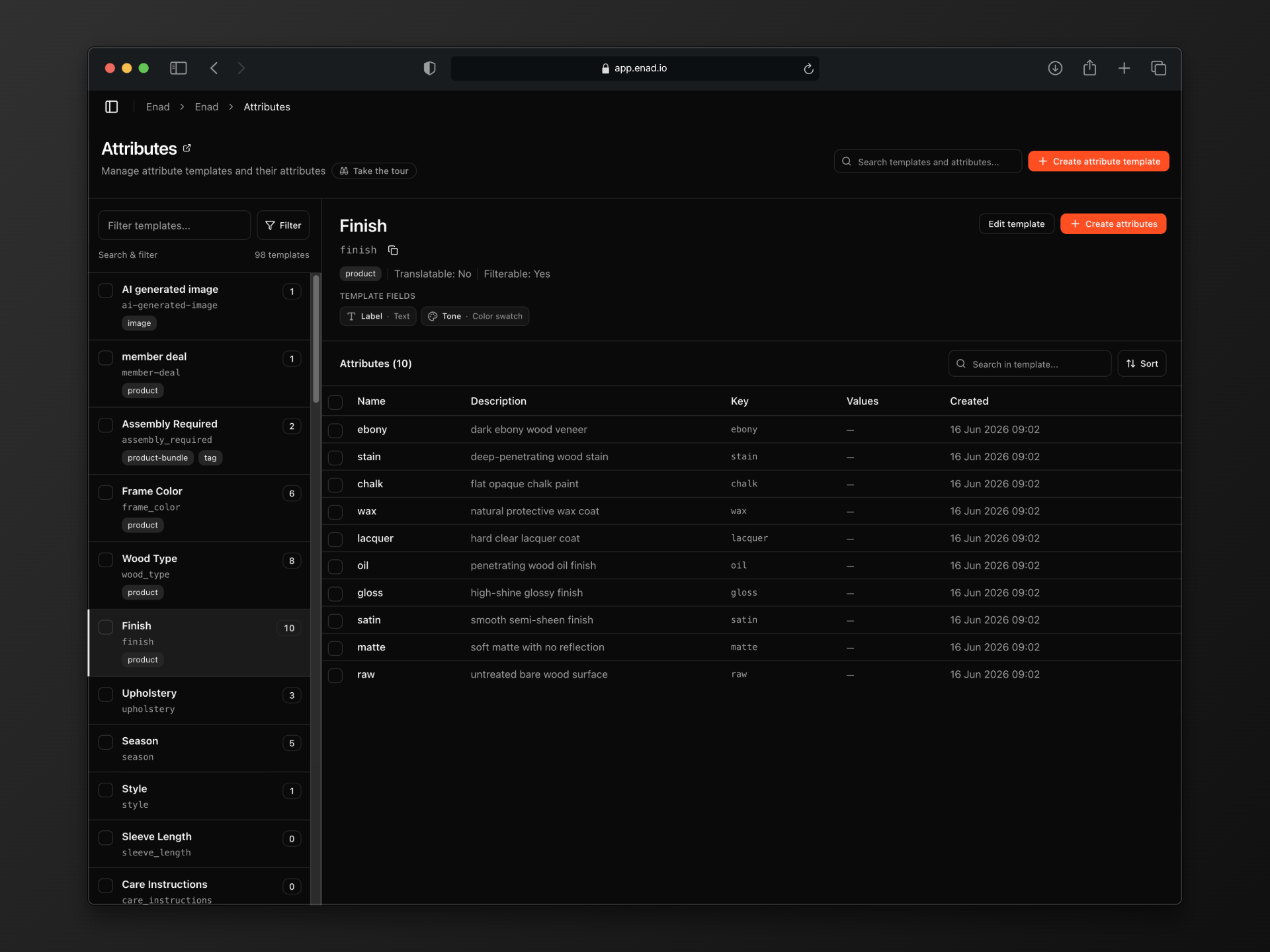
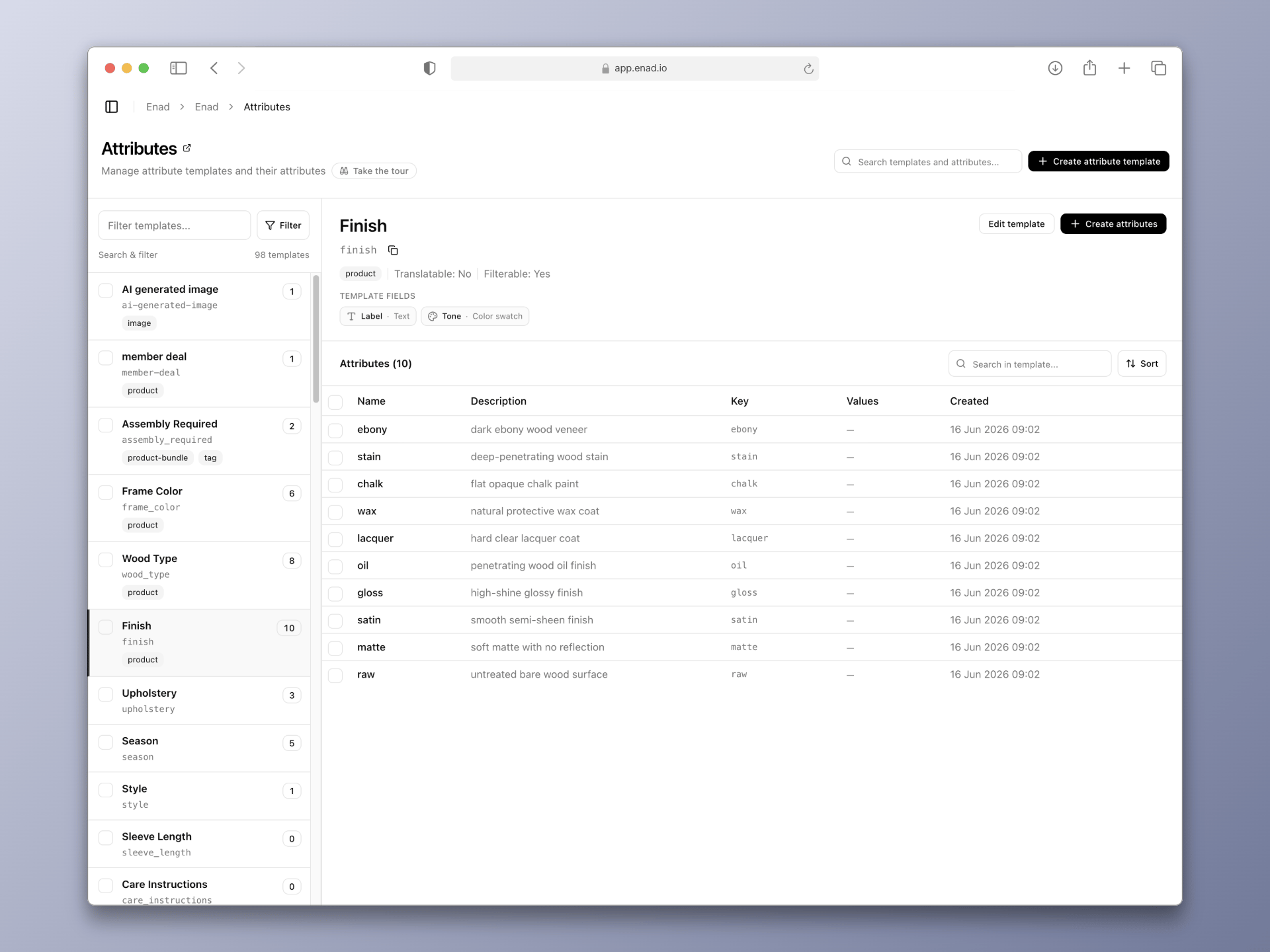
Anatomy of a template
When you create a template, you configure a few settings that apply to every attribute inside it.The key must be unique and is hard to change later because integrations
rely on it. Pick a clear name up front and let the key follow from it.
Fields: extra data on each option
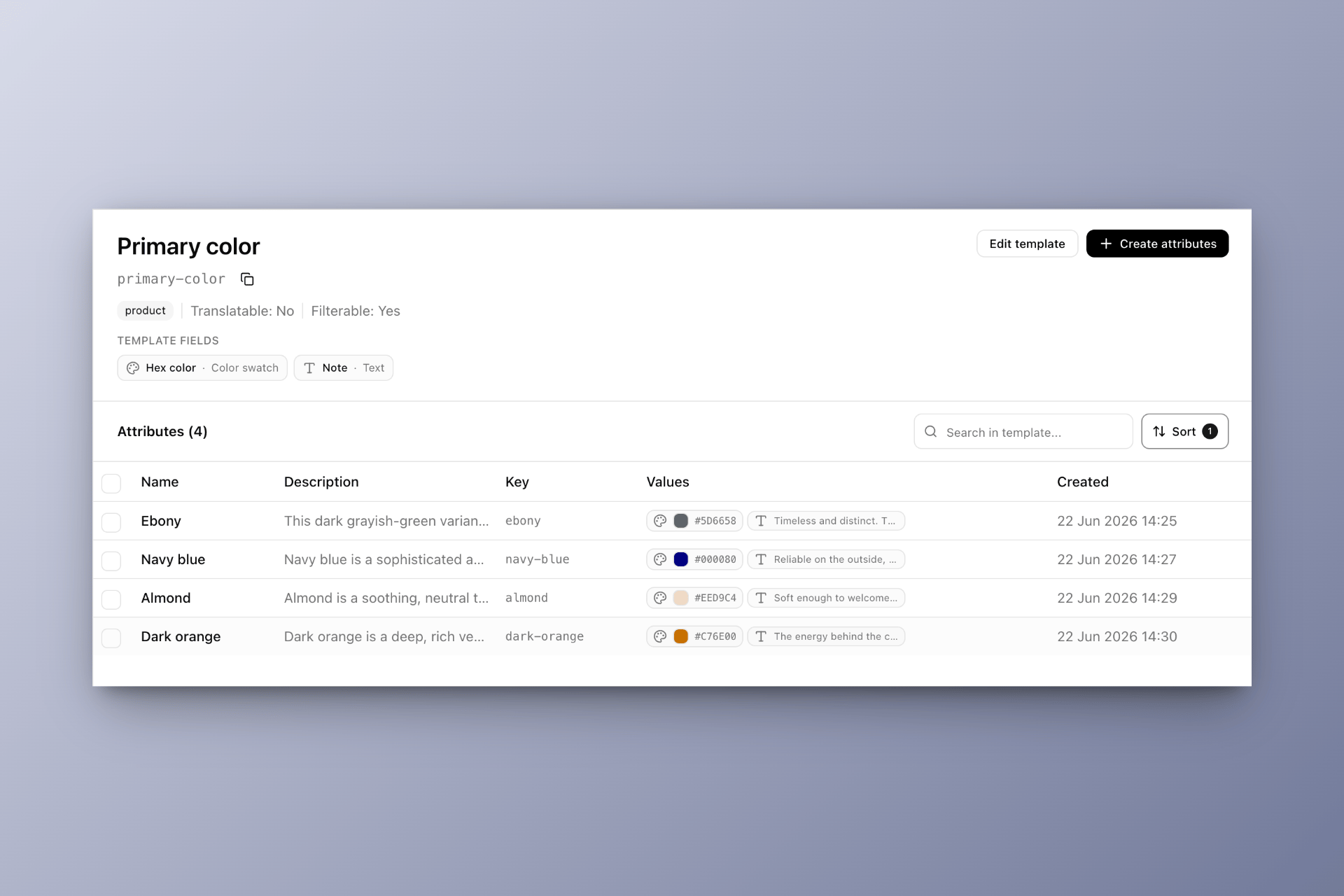
By default, every attribute already has a name, key, and description. Fields let you attach additional structured data to each option in a template. The classic example is the Color template: the option is namedForest Green, but you also want to store the exact hex color (shown as a swatch) and perhaps a real image of the material. You’d add a color field and an image field to the template, and then fill them in for each option.
Available field types:
The field keys
key, name, and description are reserved, because every
attribute already has those. You can’t reuse them as custom field keys.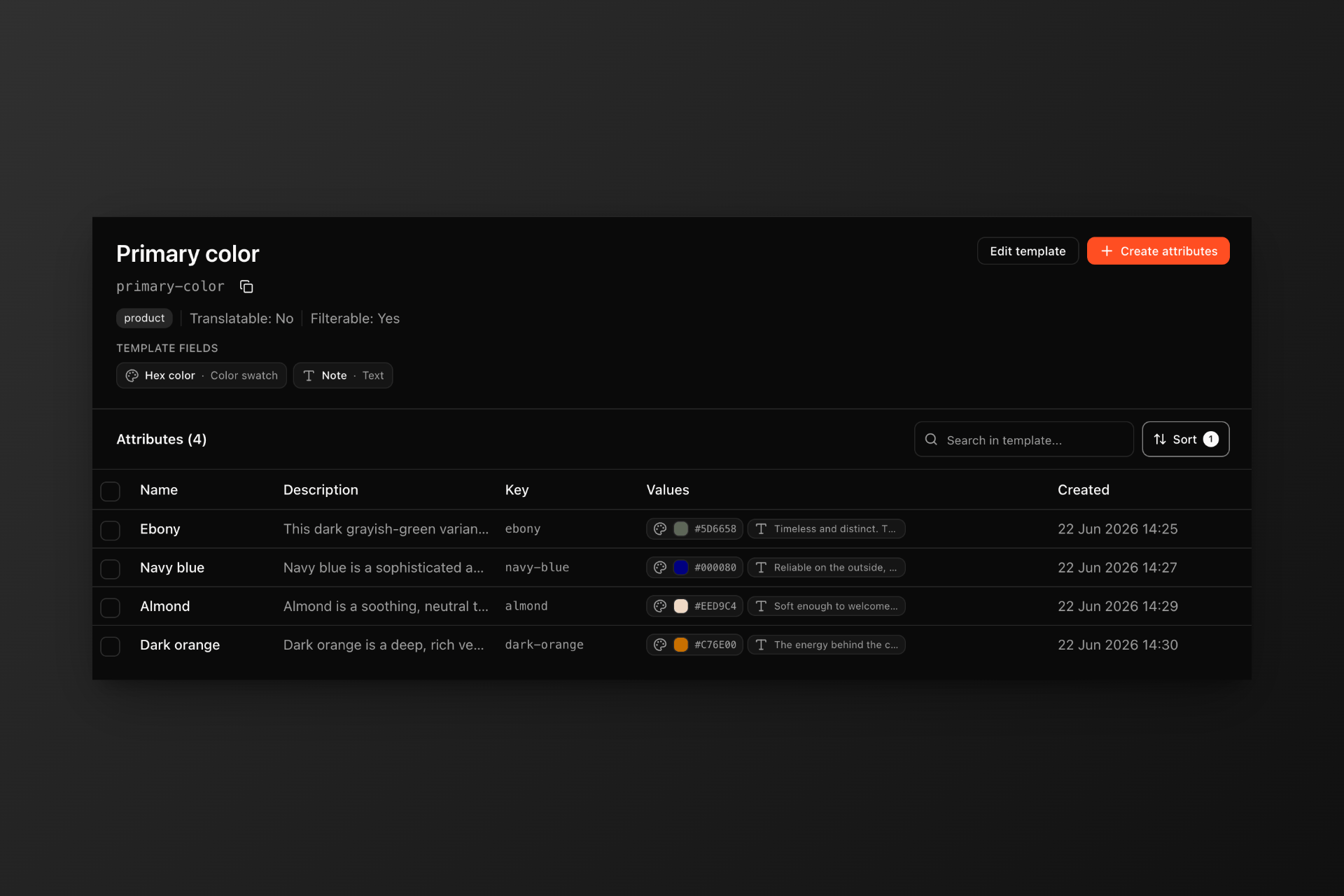
Supported resources
When you create or edit a template, the Resources field is where you choose which entity types can use its attributes. In the dashboard this appears as a multi-select on the template form; each option is one of the resource types below. Attributes aren’t limited to products. The same template model works across every supported resource:- Product
- Product variant
- Tag
- Asset (image, video, and file)
- Category
- Organisation
- Merchant user
- Product bundle
Color template might apply to products and variants, while a Department template applies only to merchant users.
Linked attributes
You can link an attribute to another attribute in a different template. When two attributes are linked, attaching one to an item automatically attaches the other. A common use: linkColor / Forest Green to a Theme / Earth Tones attribute, so that every product tagged with that color also gets the matching theme without extra work. Unlinking them stops the automatic behavior; it doesn’t remove attributes already attached.
Typical workflow
1
Create a template
Go to Products → Attributes and create a new attribute template. Give it a name (e.g. 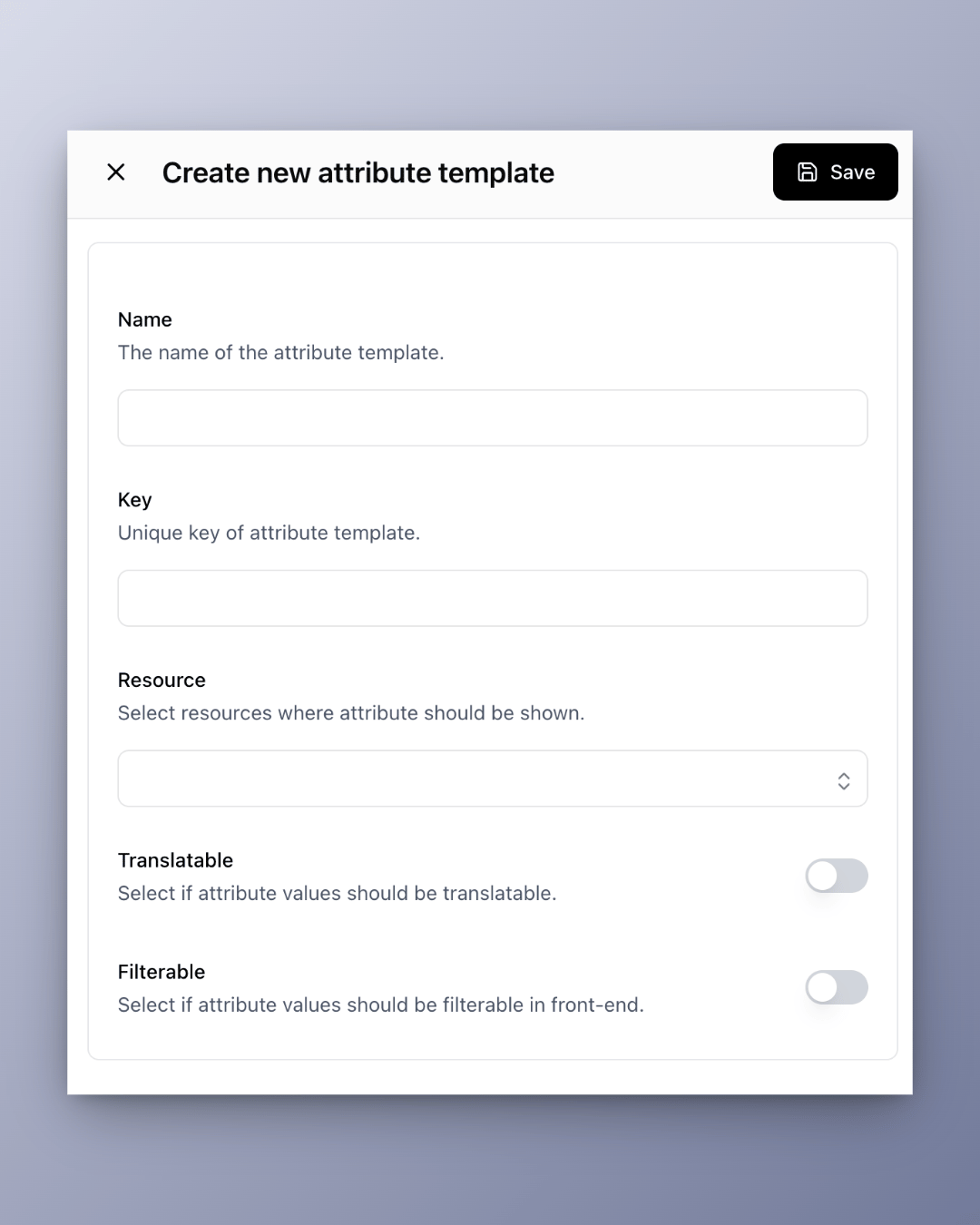
Color), choose which resources it applies to, and decide whether it should be filterable and/or translatable.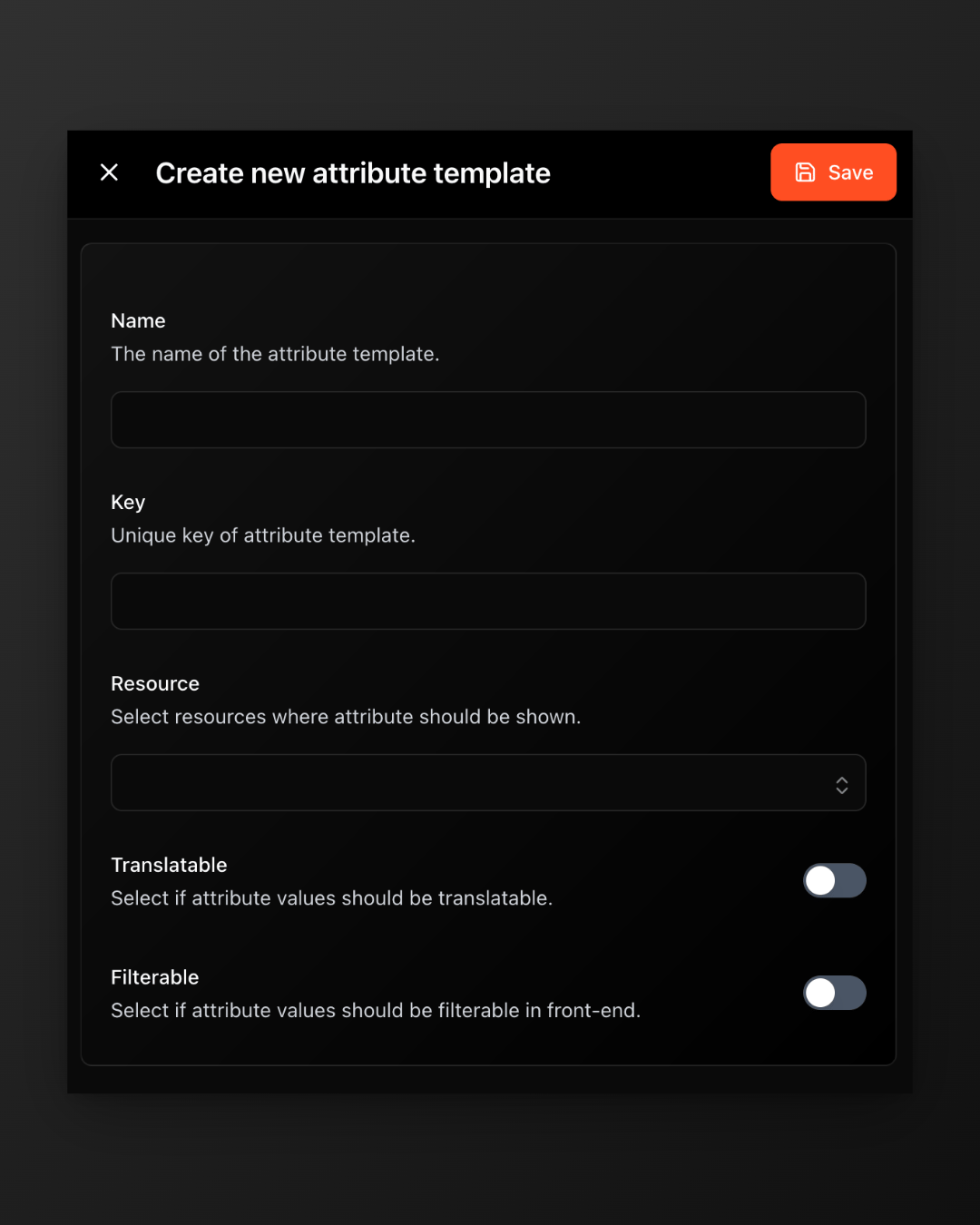
2
Add fields (optional)
If each option needs extra data, like a hex color or an image from your assets, add the relevant fields to the template.
3
Add the options
Inside the template, create the individual attributes (the options), e.g. 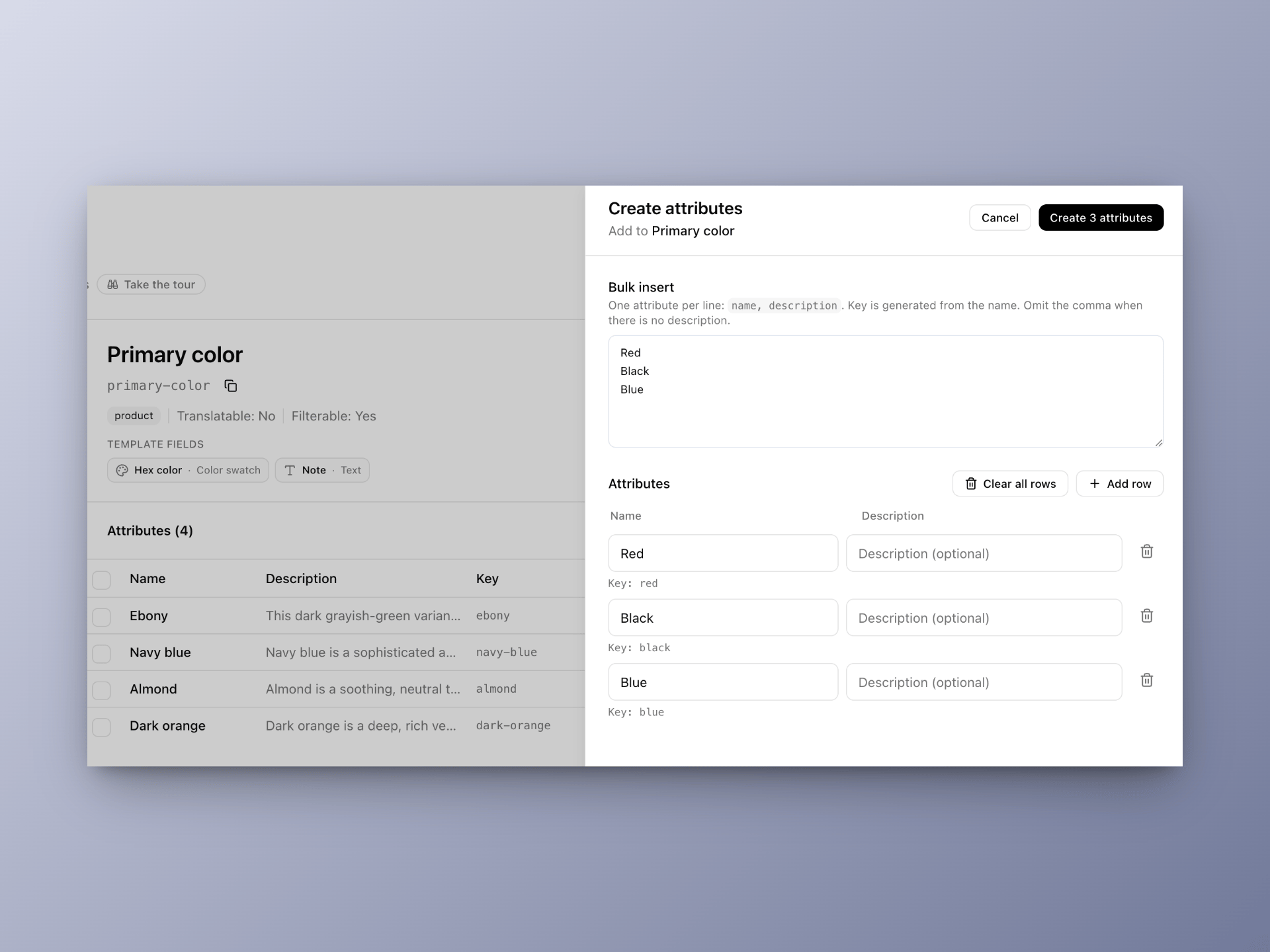
Red, Blue, Black. Bulk creation of attributes is available.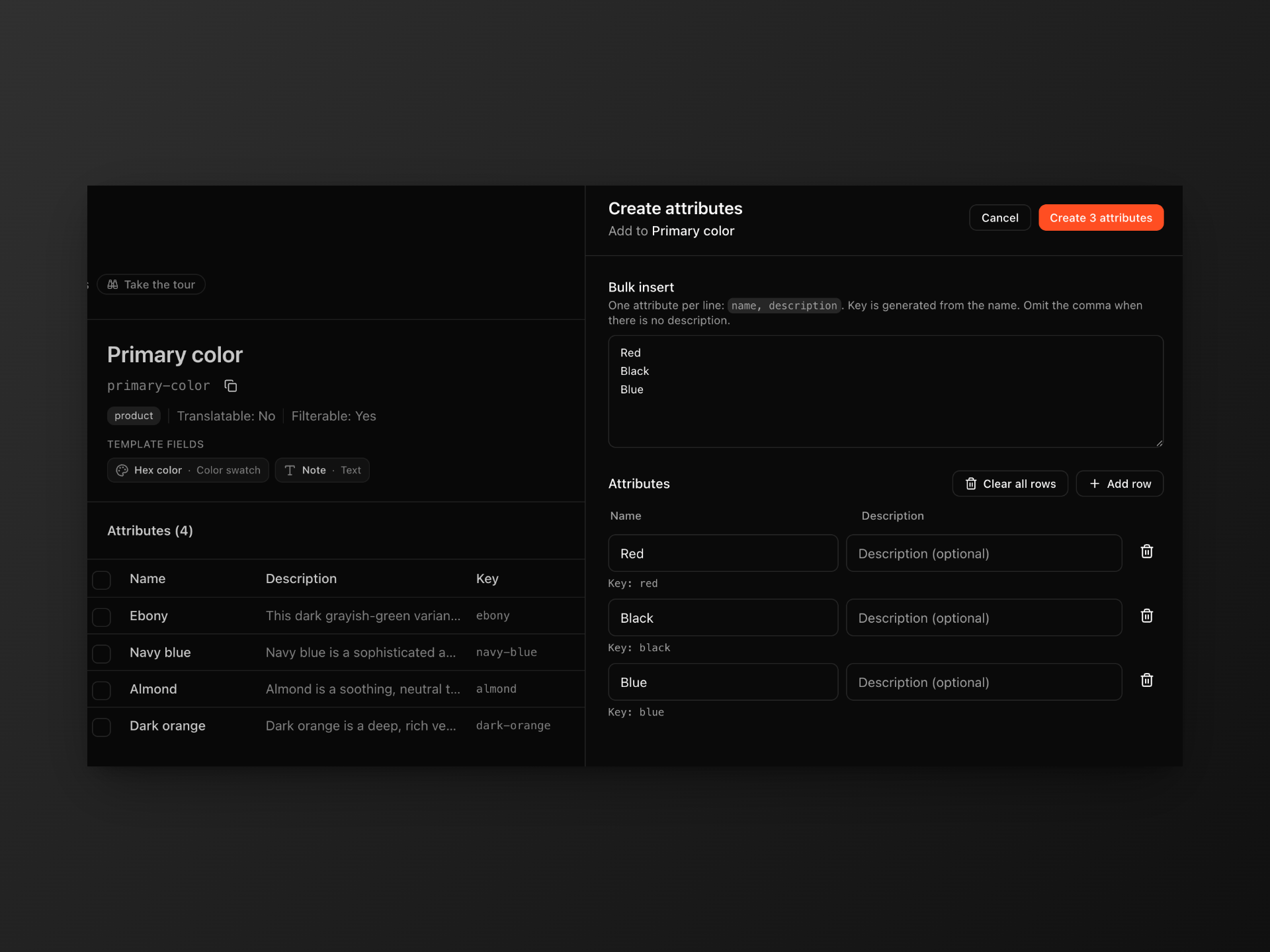
4
Attach it where you need it
Open any supported resource the template applies to (for example a product, variant, category, tag, or asset), find the template, and select one or more of its options to attach.
Attaching and detaching is flexible
Attaching an attribute to an entity simply creates a link between them; it doesn’t move or copy the underlying data. This has a few useful consequences:- Attach freely, in any combination. The same attribute (e.g.
Color / Forest Green) can be linked to as many entities as you like, across every resource type the template supports. Each entity can carry as many attributes as it needs. - Detaching never deletes data. Removing an attribute from an entity only breaks that one link. The attribute, its fields, and its values stay safe in the template and remain attached to every other entity that uses it.
- Edit once, update everywhere. Because entities point at the same attribute, editing the attribute (for example fixing a hex value or a translation) updates it for every entity it’s linked to.
- The template is the source of truth. Your attributes and their data always live in the template. Entities just reference them, so you can reorganize what’s attached where without ever losing the values themselves.
Best practices
- Reuse templates instead of creating duplicates. One
Colortemplate with many options is far easier to maintain than separate color fields per product. - Use clear, stable names. The key is derived from the name and is relied on by integrations, so name things well from the start.
- Mark something filterable only if shoppers should filter by it. Internal-only data doesn’t need to be filterable.
- Enable translatable early if you sell in multiple languages, since it’s easier than backfilling translations later.
- Keep fields minimal. Add fields only when an option genuinely needs extra structured data (like a hex color or an image); otherwise the name and description are enough.